This Insta360 X5 & X6 Update Makes Your Videos Look Better
Oct 20, 2026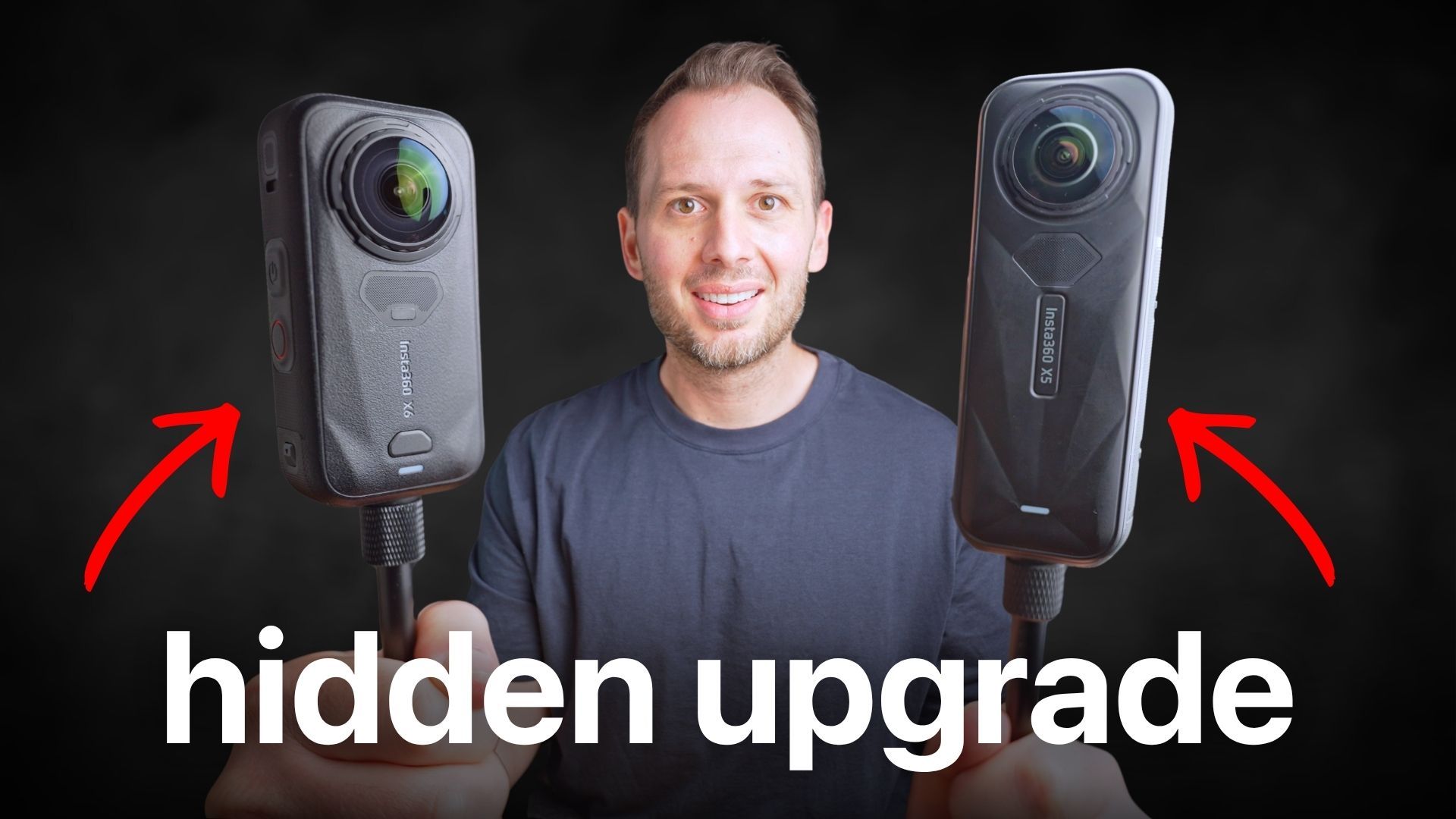
If you own an Insta360 X5 or X6, Insta360's new update unlocks video quality that is better and easier to apply than ever before.
One of the biggest features of the X6 is 10-bit combined with log. I know that doesn't sound very exciting, but it's a pretty big deal. It allows the camera to capture significantly more colour information, while log preserves more detail in the highlights and shadows.
The problem? Log footage looks terrible if you don't colour grade it. When the X6 launched, there wasn't a simple way to transform that flat footage into the finished image it was designed to become.
But that's finally changed. Insta360 has added simple, one-click LUTs to its desktop and mobile apps, meaning you can now shoot in log and instantly get a dramatically better-looking shot without needing to understand colour grading.
And this isn't just for X6 owners. The X5 also has a log colour profile, and I've found that this new workflow can noticeably improve its footage, too.
So, whether you own an X5 or X6, here's how to get started.
1. Update Your App, Software and Camera
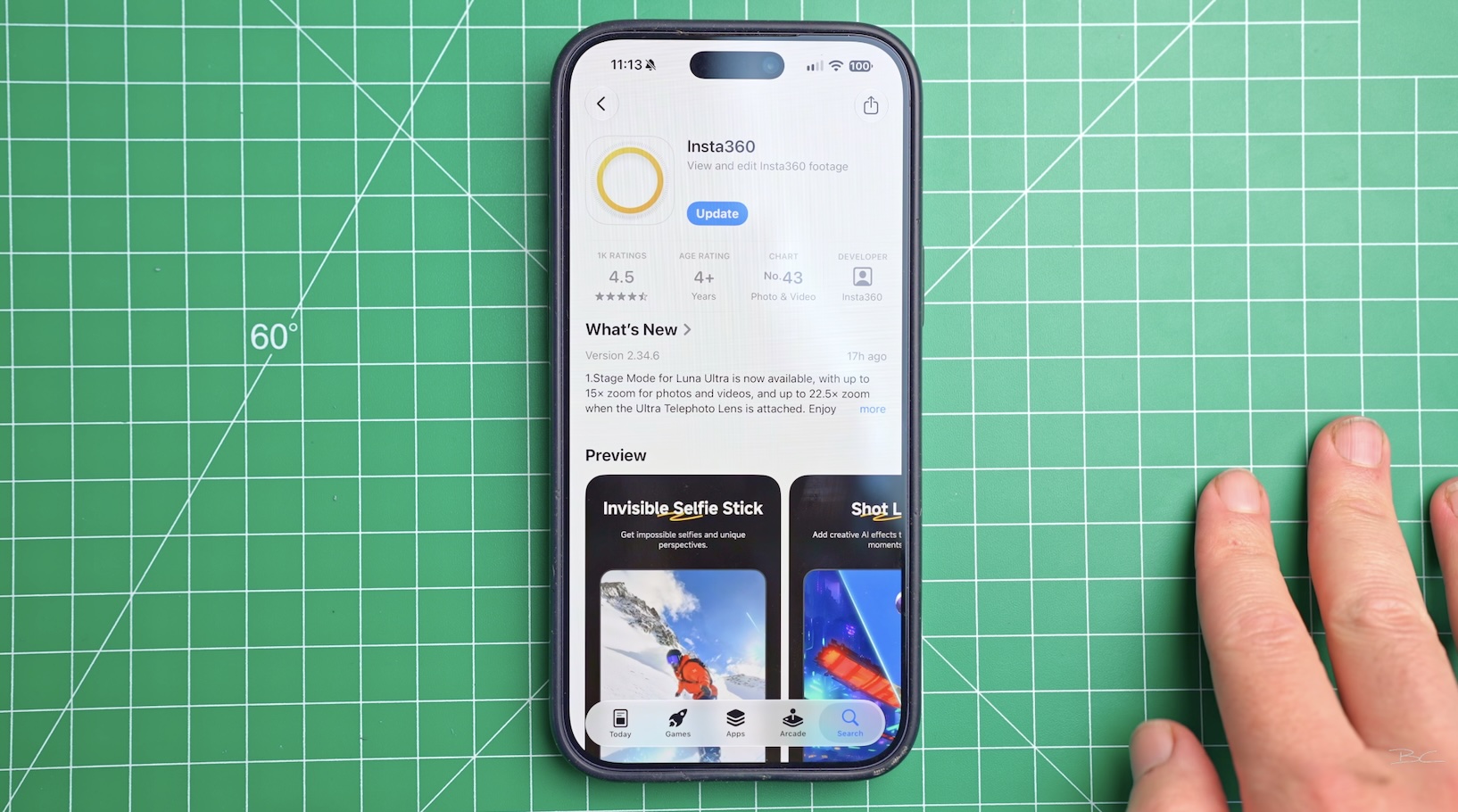
First, you'll need to update three things:
-
Mobile app: Head to the App Store or Google Play and install the latest version.
-
Desktop software: Open Insta360 Studio and follow any update prompts.
-
Camera firmware: Connect your camera wirelessly to the app and download the latest firmware when prompted.
Once everything is up to date, you're ready to go.
2. Enable Log on Your Camera
Insta360 X5
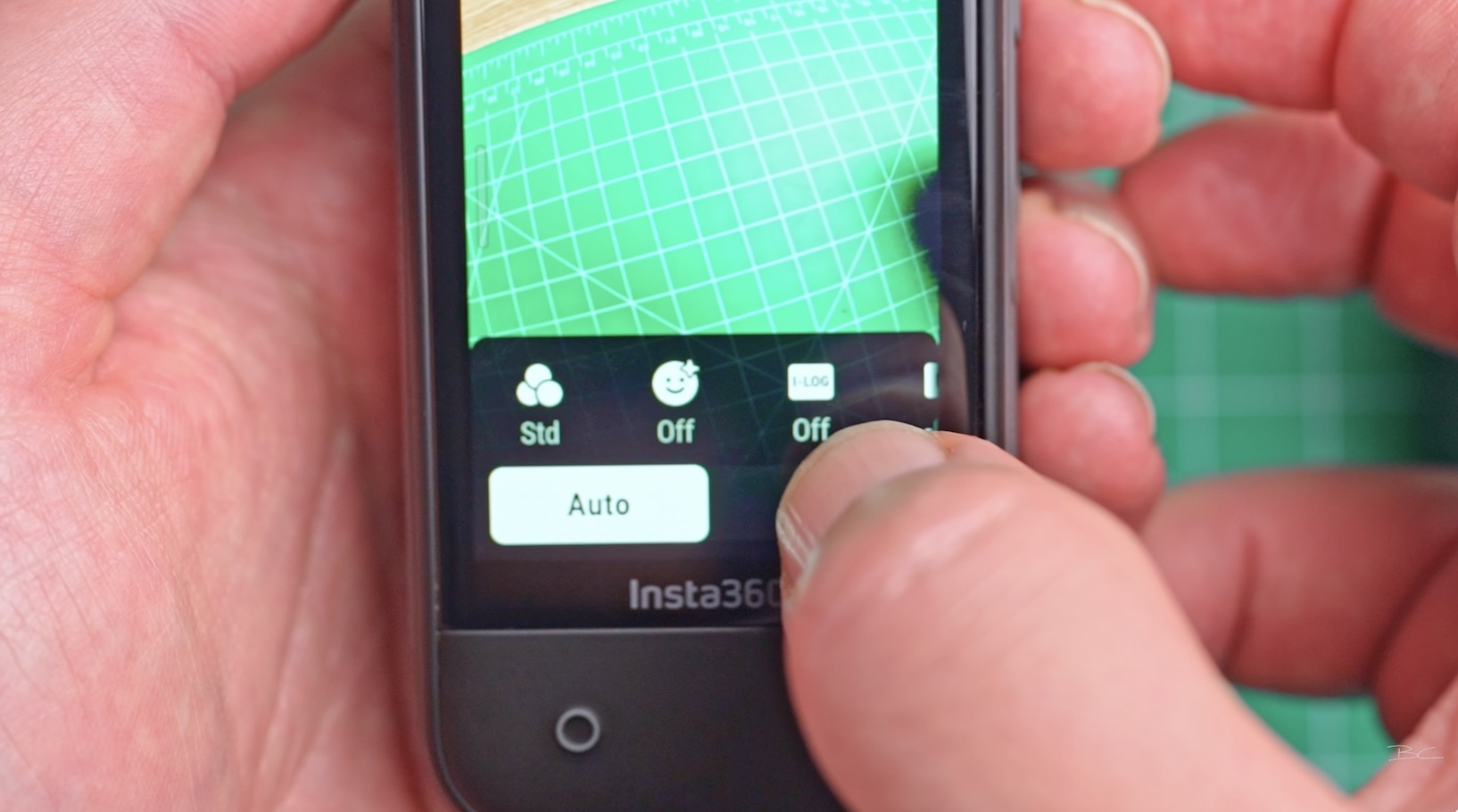
The X5 has one limitation when shooting in log: you can't use 8K 30. Change your resolution to 5.7K 60, then swipe across from the right to open your exposure settings.
You'll see an i-Log option. Turn it on, and your camera will shoot using that flat colour profile.
Insta360 X6
The X6 has no resolution or frame-rate limitations with this workflow, so you can shoot in 8K 50.
Swipe across from the right, go to Basic > Colour Mode, and switch from Standard Colour to i-Log 10-bit.
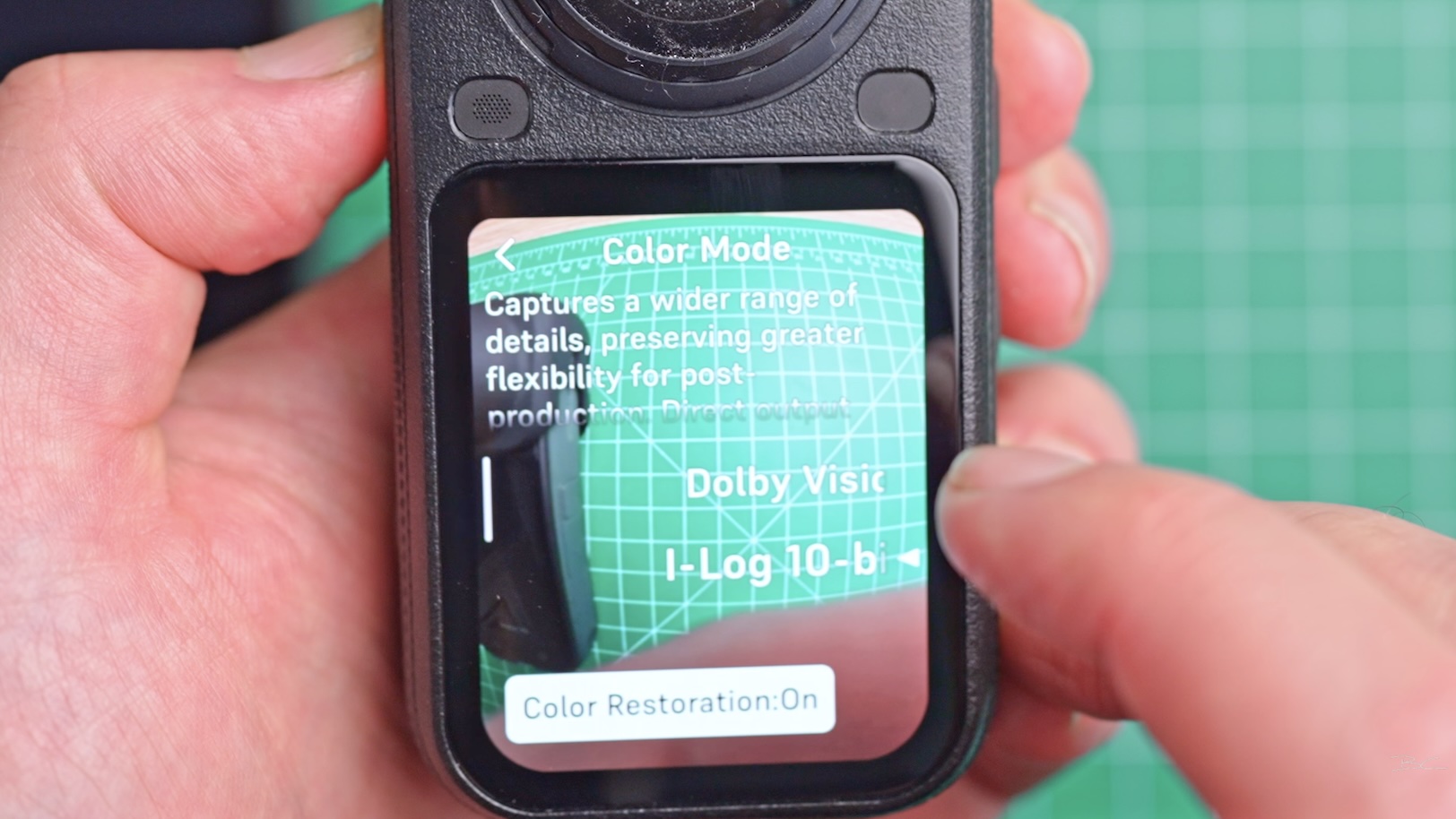
You'll also see a Colour Restoration option. Turning this on gives you an in-camera preview of what the finished video will look like, rather than the flat log image. It's just for preview purposes, though — you'll still need to apply the LUT when editing.
3. Apply the LUT in the Mobile App
Once you've filmed your footage, connect your camera back to the Insta360 app and head to the Album tab.
Tap on a shot filmed using the flat colour profile, select the settings icon at the top, and turn LUT on.
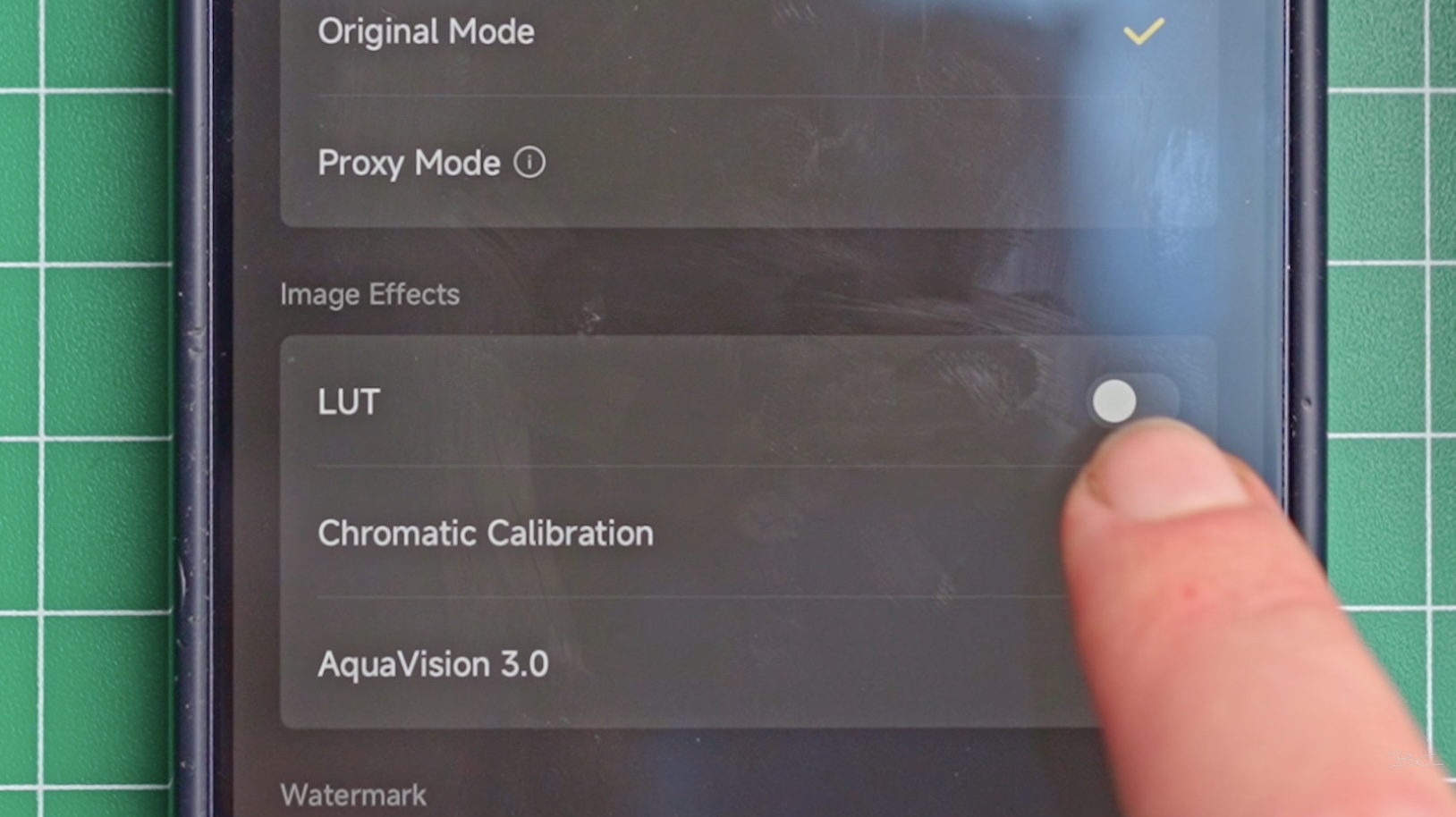
And voilà! You've got a colour-graded shot with the default Insta360 LUT applied.
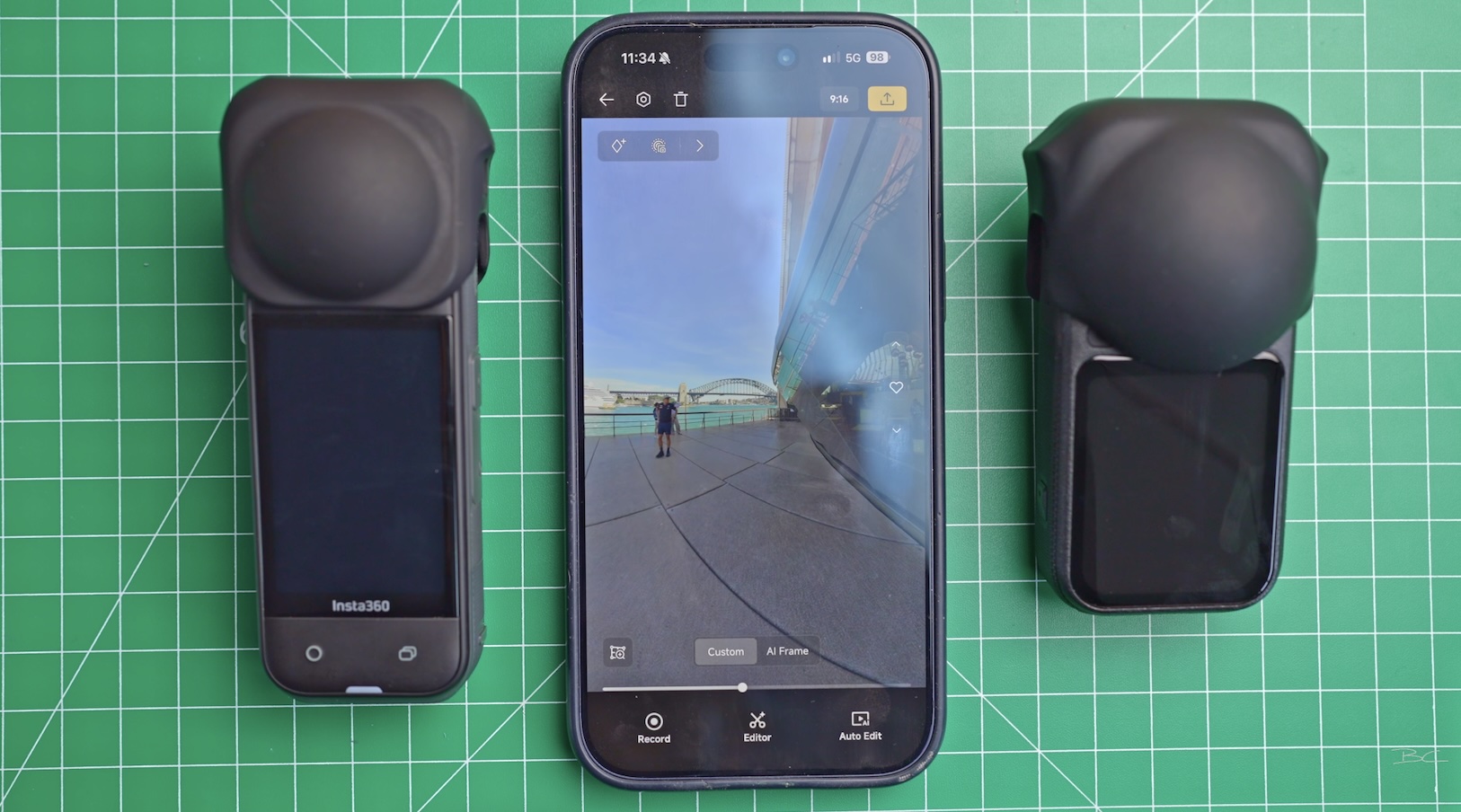
You can now reframe your footage and export it straight to your camera roll. That's it!
4. Apply the LUT in Insta360 Studio
The desktop workflow is just as easy.
Import your footage into Insta360 Studio. Your log shots should be easy to spot because they'll look desaturated. Select a clip, head to Imaging on the right-hand side, and toggle LUT on.
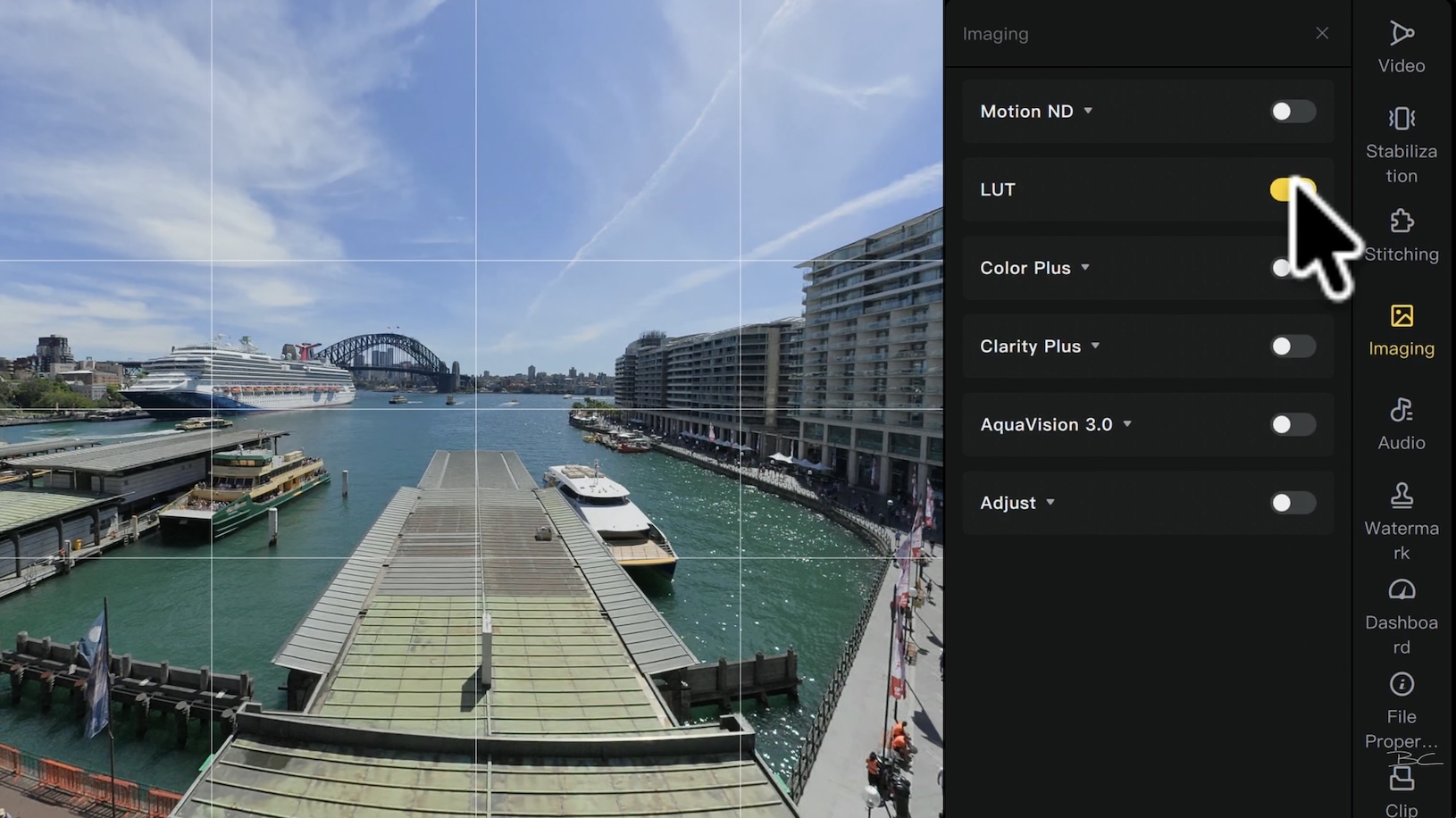
The colour grade is applied instantly. From here, you can leave it as it is or toggle on Adjust to make further corrections.
I absolutely love these log files because they give you so much flexibility when recovering shadows and highlights. Increasing colour saturation also looks much more natural than it does with standard 8-bit footage, where pushing the colours can make everything look like a Disney movie rather than reality.
I'd recommend doing a little extra colour correction, even if it's just small adjustments to saturation, shadows and highlights. The LUT has already done most of the work, so you really don't need much.
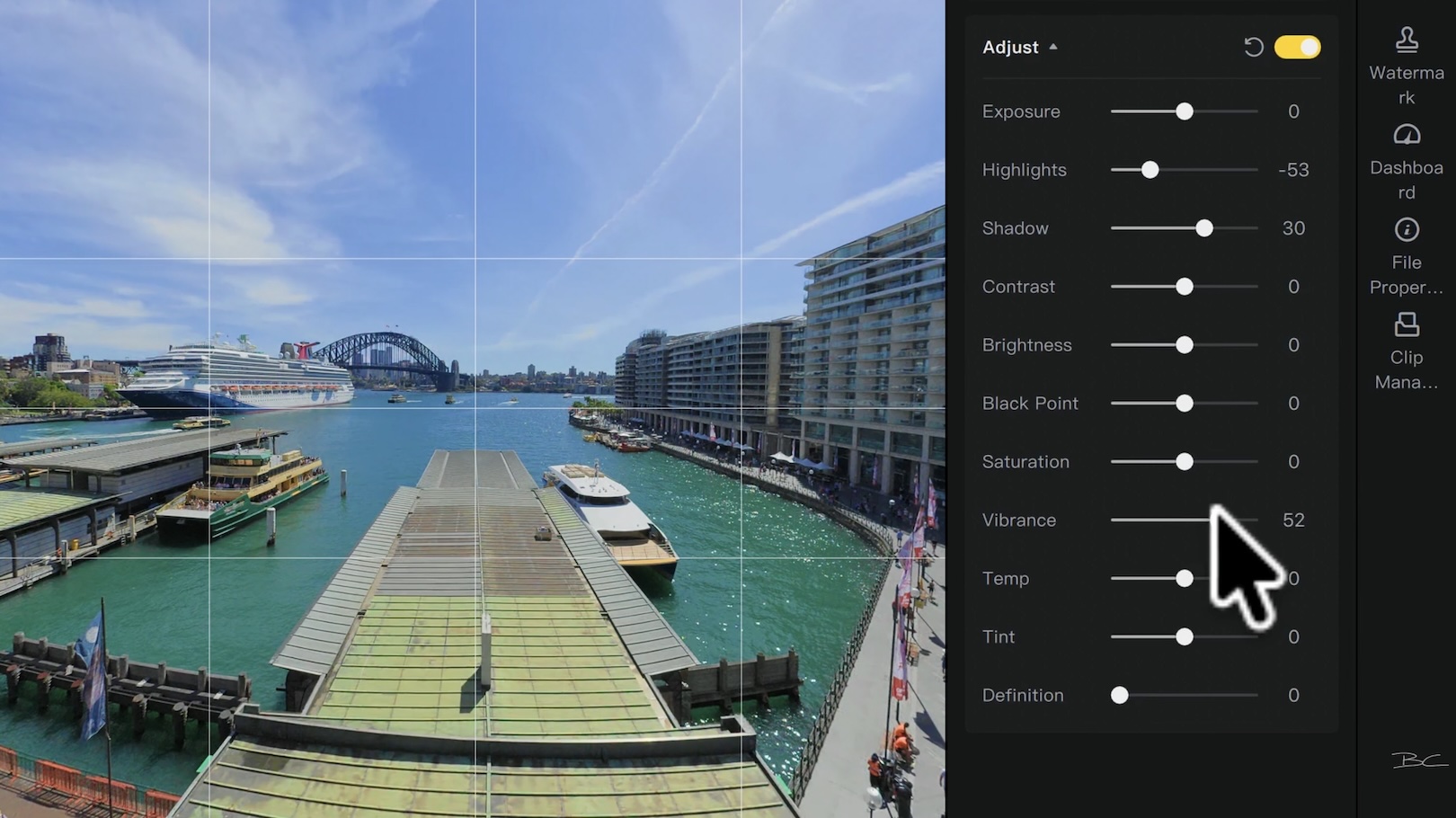
In my testing, I was able to make a noticeable improvement in about 15 seconds.
Bonus Tip: Apply Your Colour Grade to Multiple Clips
Once you've colour-graded a clip, you can copy those settings across other shots.
Right-click your edited clip and select Copy Attributes. Then right-click another log clip and select Paste Attributes.
I'd recommend selecting only the Imaging options, which include the LUT and your adjustments, rather than copying every setting. Click Apply in Batches, and Studio will apply the same colour grade to your new clip.
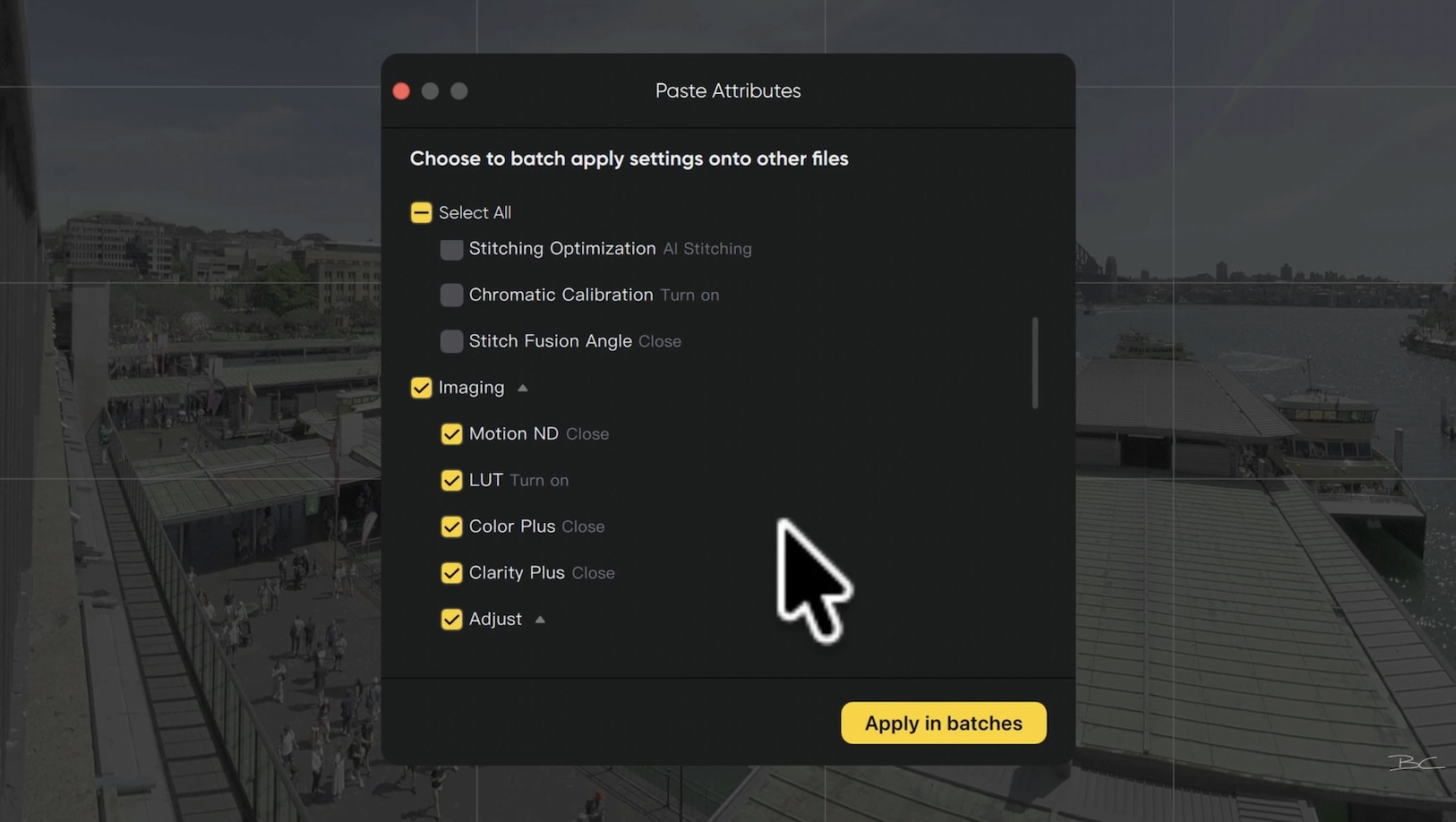
You can select multiple clips using Command or Control and repeat the process to colour grade a whole batch at once. It's a great way to keep your footage consistent without editing every clip individually.
5. Export Your Footage
Exporting follows the usual process. Hit Export, and Insta360 Studio should automatically recognise your resolution, frame rate, recommended bit rate and colour space, including 10-bit if that's what you filmed in.
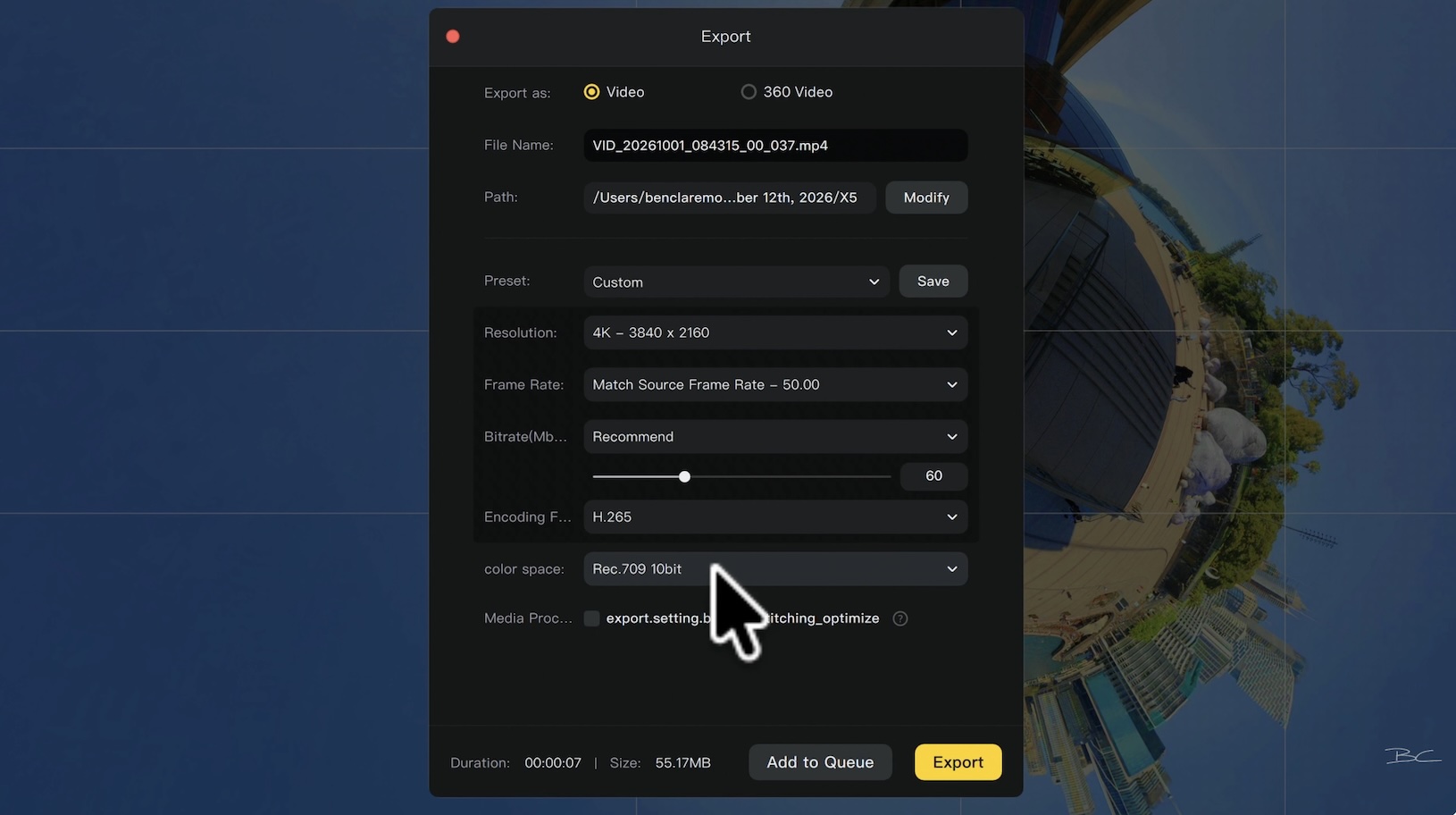
When it comes to the format, some people recommend ProRes 422, but this can make your files disproportionately large. For example, seven seconds of footage could be around a gigabyte, compared with H.265, which can be roughly a tenth of that size and look more or less identical.
You can adjust the settings to match your editing project, then hit Export when you're happy.
6. Get Even Better Results with DaVinci Resolve
You can also do a second round of colour correction in your editing software.
I've found that bringing the footage into DaVinci Resolve and making a few small tweaks to the shadows, highlights and colours can take it from a nine out of ten to a ten out of ten, within the limits of what the camera can achieve.
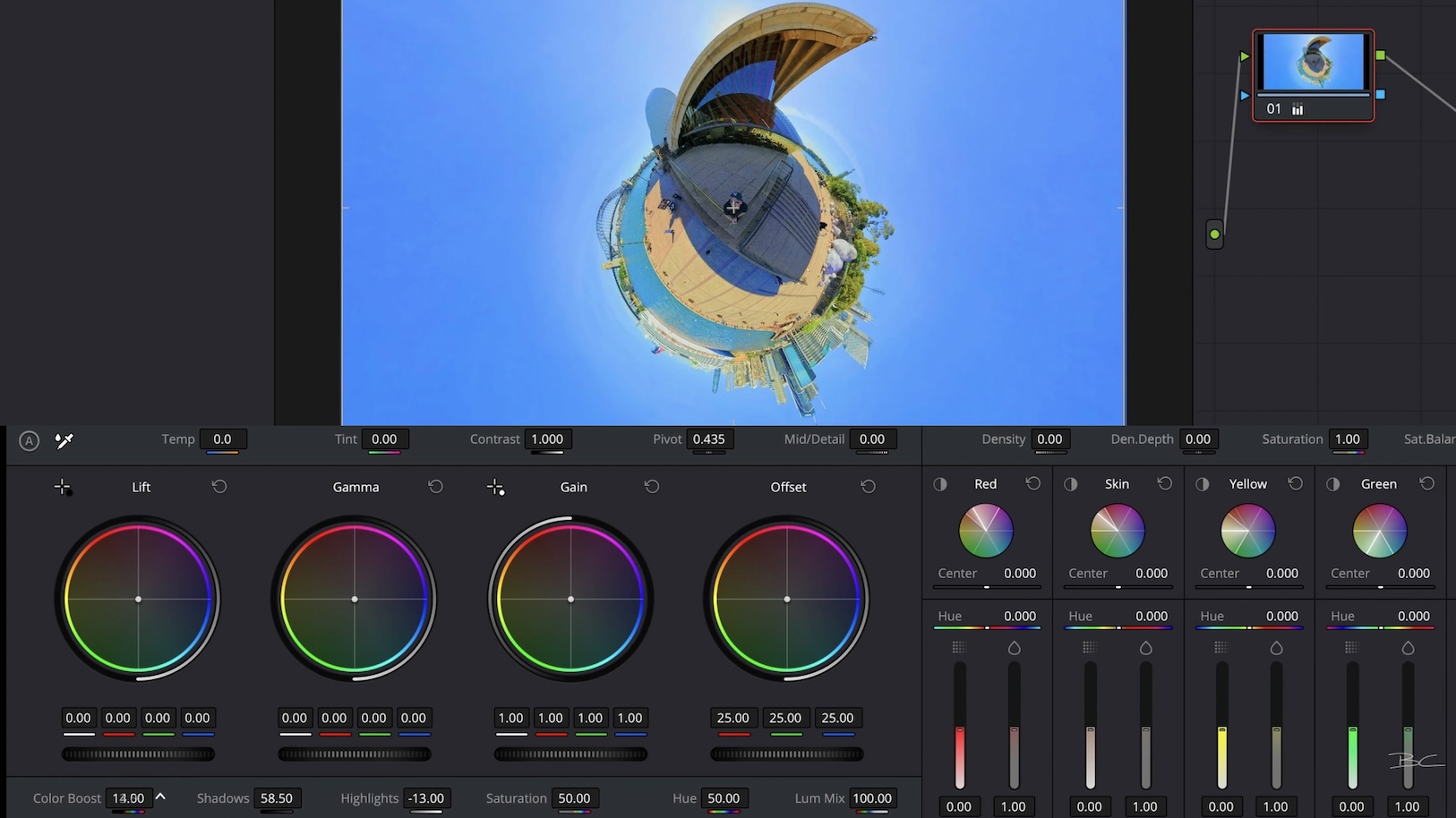
If you're not already using DaVinci Resolve, I'd strongly recommend giving it a go. It's completely free, with no ongoing subscription fees, and it's a powerful tool for editing and colour correction.
So, When Should You Use Log?
Personally, I'd use log whenever getting the maximum possible quality out of your camera is important to you, even for a basic social media post.
If you want to shoot, export and do absolutely no post-production, the standard colour profile might still be better. But with this new one-click workflow, it's pretty tempting to just use log and press that one button.
It makes me think back to my recent trip to Canada, where I filmed some of the most stunning landscapes I've ever seen using the X6's standard colour profile. The footage was still good, but if this workflow had been available at the time, I absolutely would have used log.
Previously, I avoided it because the editing process was so complicated that I worried I wouldn't get the shots looking right. Now, even beginners can use 10-bit and log without specialist knowledge.
And if you're a beginner wanting to feel more confident editing in DaVinci Resolve, check out my DaVinci Resolve Simplified course. It gives you a structured workflow to follow on every project, so you can spend less time figuring out the software and more time creating great videos.
Blog Author