3 Quiet Updates To The Insta360 App You Missed
Apr 24, 2026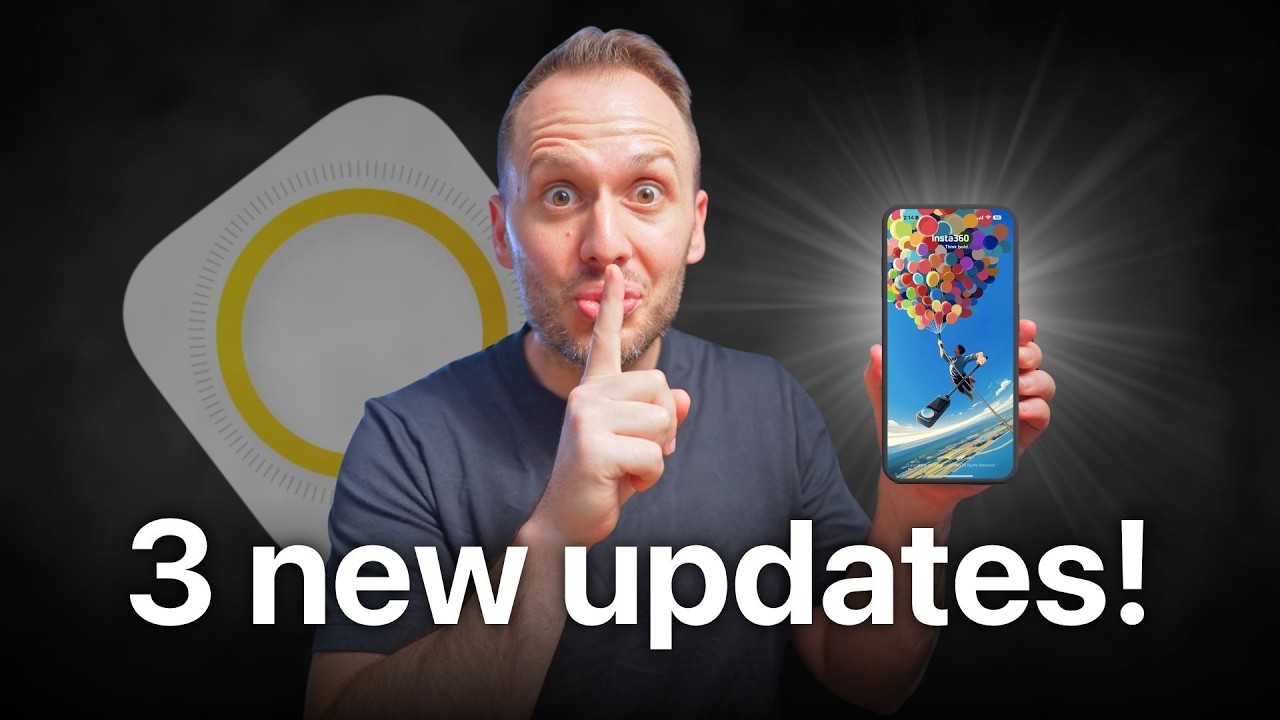
Insta360 updates their mobile app a lot. And while most of those updates are just minor bug fixes, there have been three really good features added over the past few months that have completely slipped under the radar.
In this post, I’ll walk you through what they are and how to use them to unlock even more creative potential from your 360 camera.
All shots mentioned were taken with the Insta360 X5, which is the current best 360 camera from Insta360. However, if you’re using an older camera—or even a newer one in the future—the same three features should still work in exactly the same way.
Before we get into it, you’ll need to make sure you’ve updated the Insta360 app to the latest version via the App Store or Google Play.
1. A Much Better Multiview Feature
The first update is a seriously improved multiview tool that lets you show two, three, or even four angles of the same shot at once.
This is a big upgrade for anyone creating more dynamic or storytelling-style edits.
To use it, you start by loading your clip into the app (I’ve downloaded one I shot on the X5). From here, open the reframing menu by tapping the keyframe icon. At the bottom, you’ll see different reframing options—and the one on the far right is multiview.
Once you tap that, you’ll enter the new multiview dashboard.
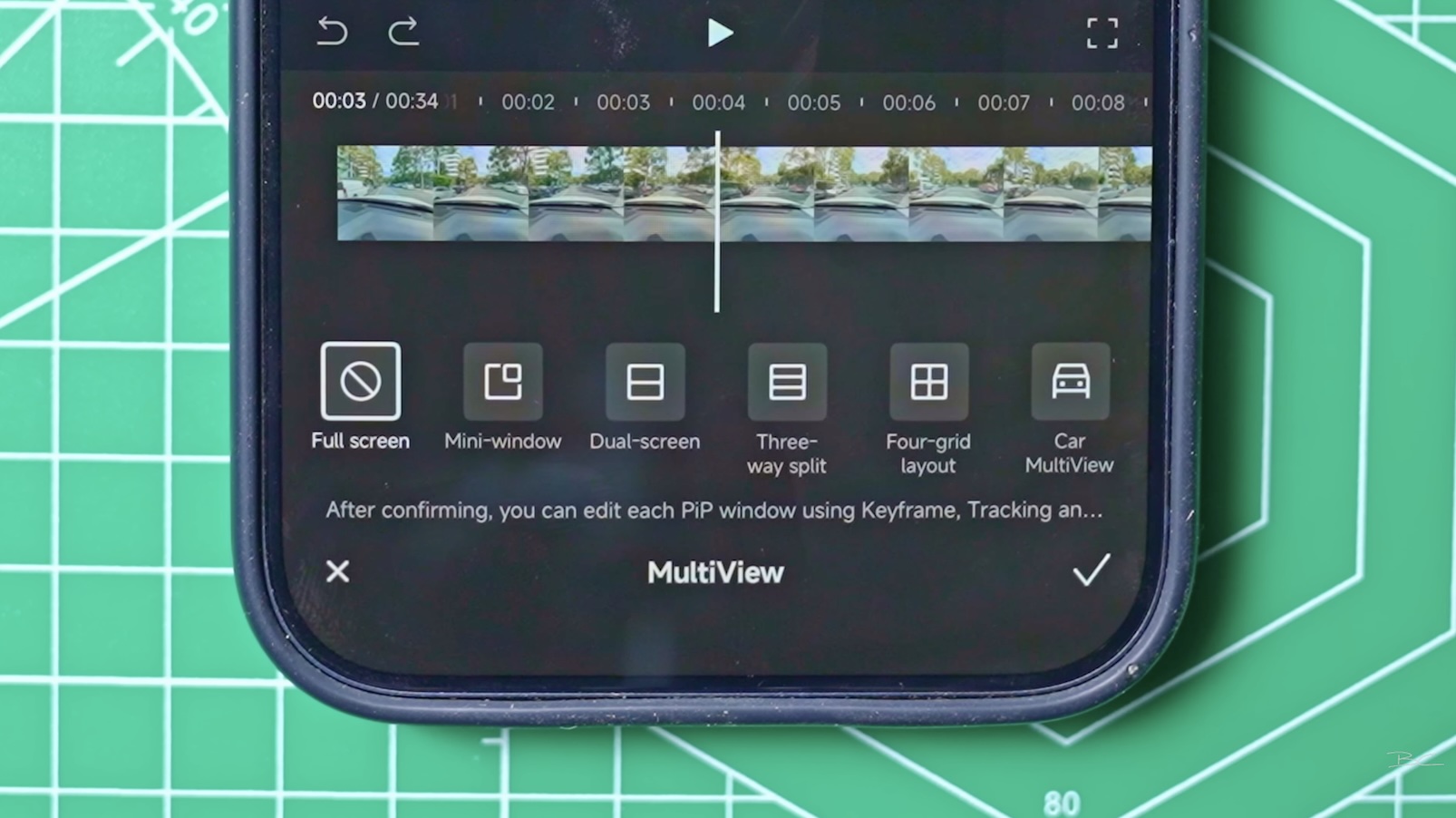
There are preset layouts like car multiview, and you can drag a selection box across the part of the clip you want to use. If you want the whole clip, just drag it across entirely.
Straight away, you’ll see a split-screen view—one angle facing me, and the other facing my point of view.
What’s great is that nothing is fixed. You can tap either window and adjust the framing independently. Pinch to zoom in tighter on the road, or pull back for more of your face—it’s fully flexible.
You also get a blend option, which softens the edge between the two shots if you want a more seamless look.
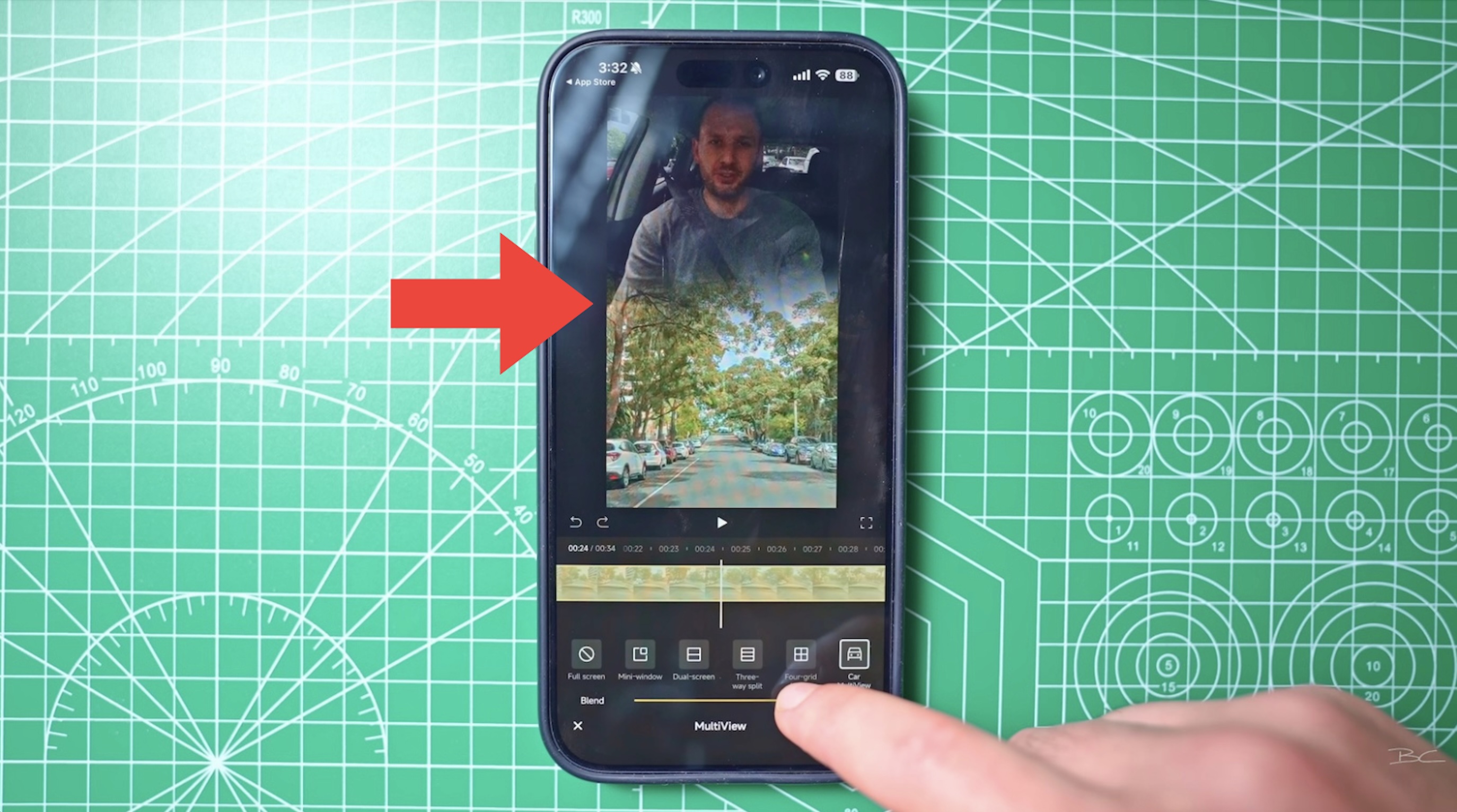
And it doesn’t stop at two views. You can also create:
- Three-way splits
- Four-grid layouts
Each angle can be adjusted individually, which makes this especially powerful for things like car or motorbike footage. You could have one shot facing forward, one to the side, one on your face, and one capturing the road.
There’s even a picture-in-picture mini window option.
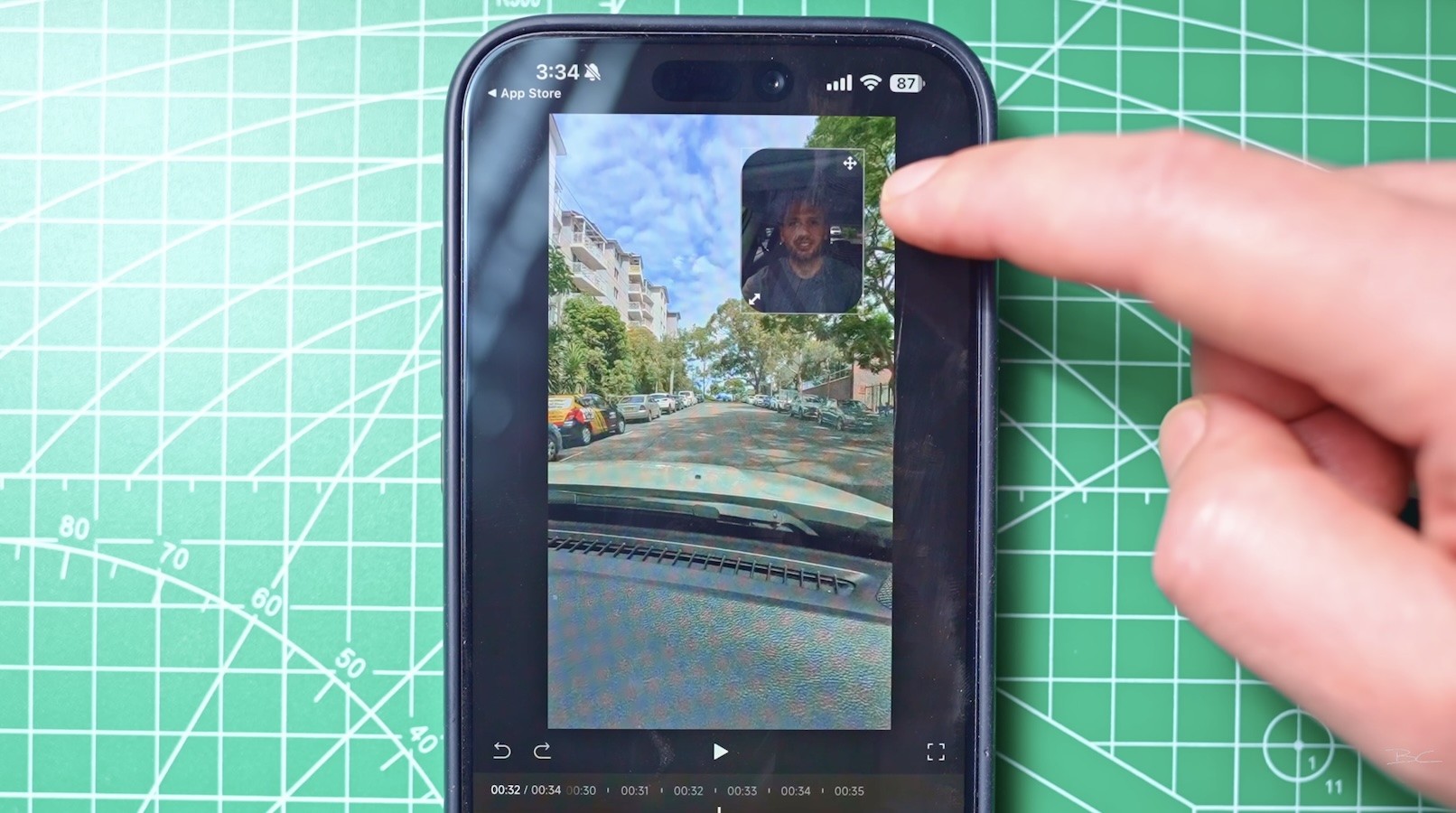
This lets you keep one main view (like the road) while adding a smaller floating box of yourself talking over it. You can reposition it, resize it, and even adjust the corner radius to make it sharp or rounded.
For vloggers, this is a massive upgrade. It’s one of those features that really shows why 360 video is so powerful when used creatively.
2. Smooth Transitions Between Keyframes
The second update fixes something that’s always been a bit frustrating. Previously, when you added keyframes in the Insta360 app, transitions between angles often felt a bit abrupt or choppy. That’s now been solved.
After setting your keyframes as normal, you simply place the playhead between two points. You’ll notice a small transition icon appear. Tap that, and you’ll open a new transition menu.
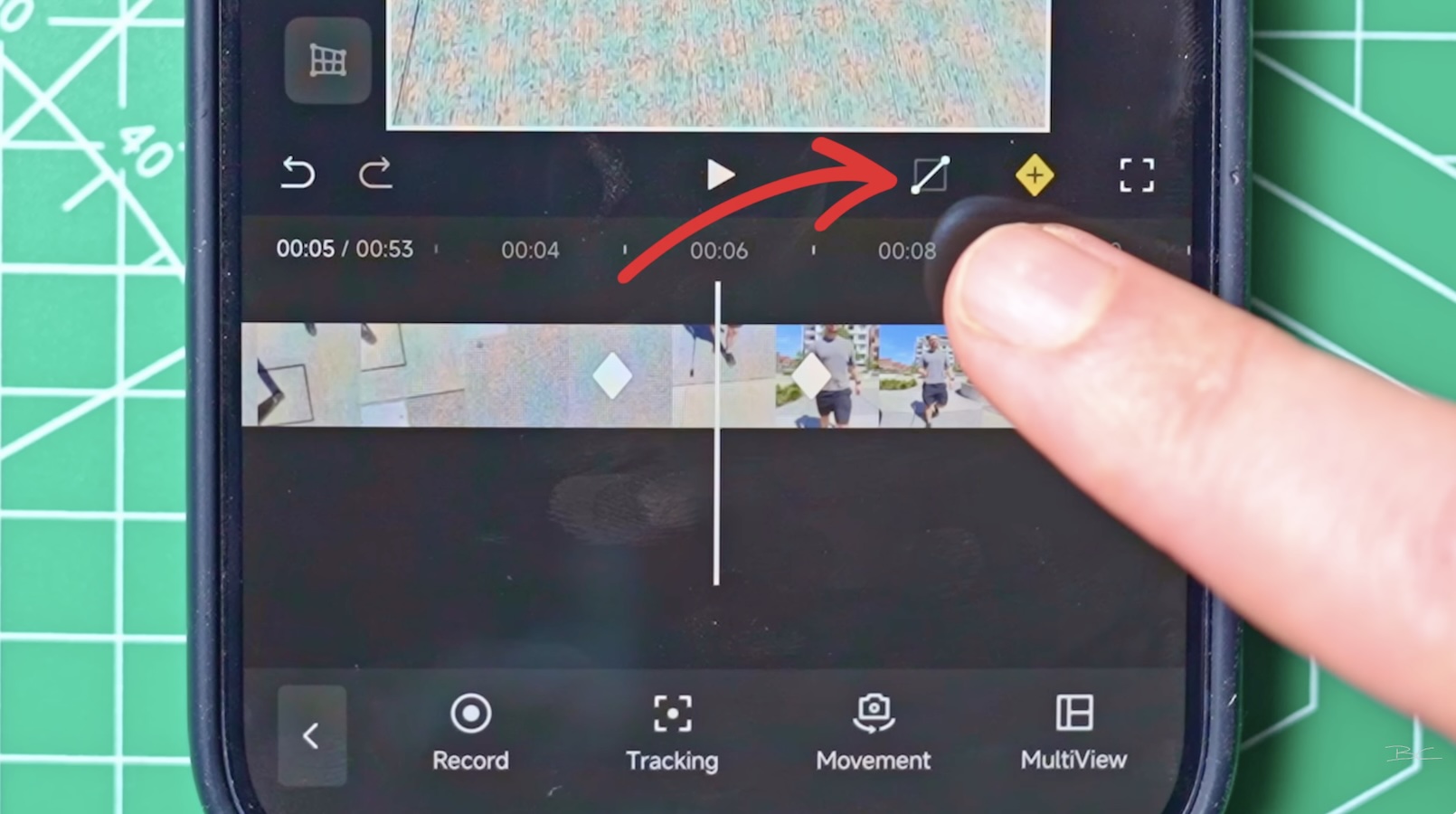
This introduces keyframe curves, similar to what you’d find in the Insta360 Studio desktop software. The best option here is ease in/out, which slows the movement at the start and end of each transition. It makes everything feel much more natural and cinematic.
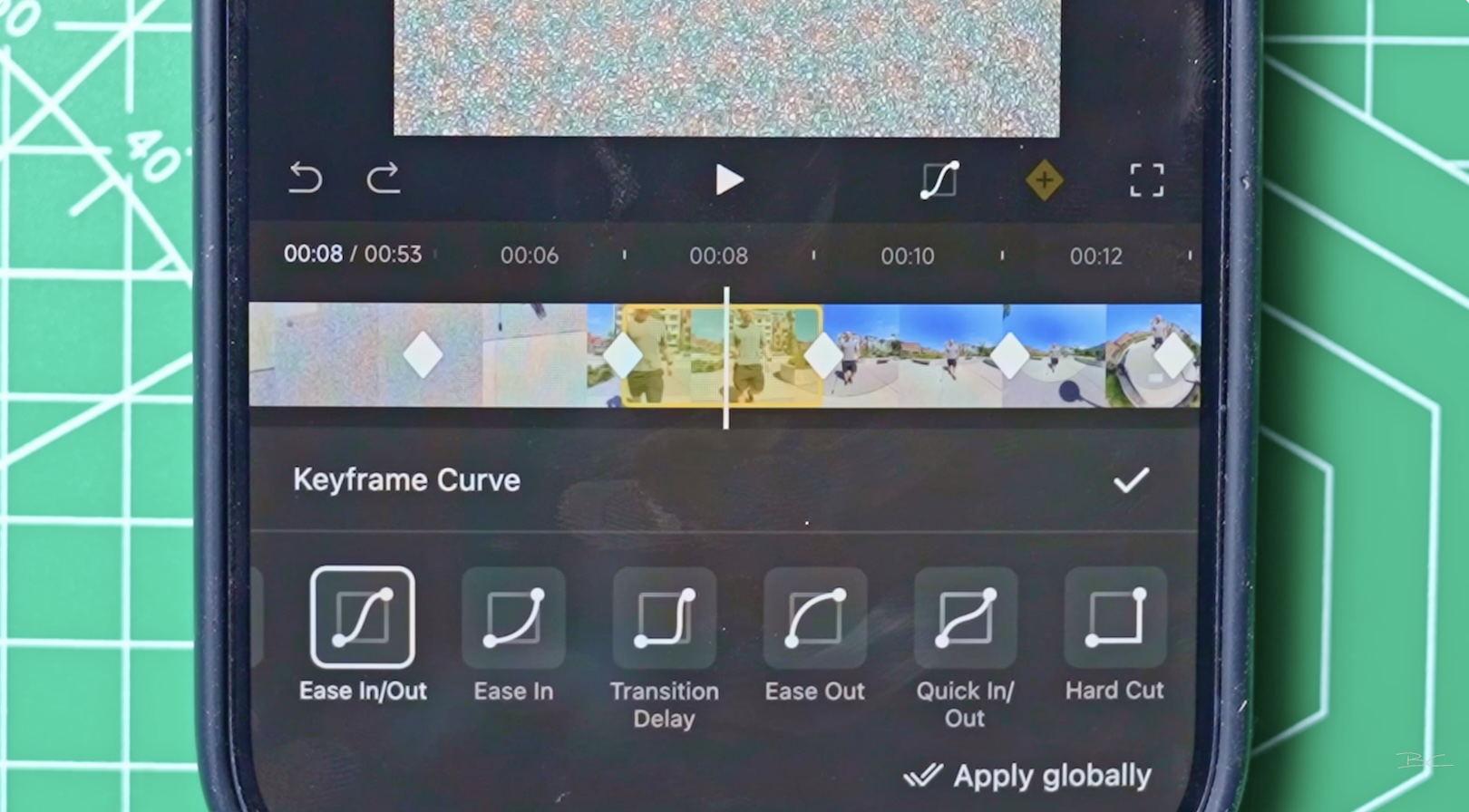
Once selected, you’ll see your camera movement instantly become smoother when played back.
You can:
- Add transitions between as many keyframes as you like
- Apply different curves per segment
- Or apply them globally across the entire clip
If you apply it globally, every camera move smooths out automatically and even pauses slightly at each end point, giving your footage a bit more breathing room.
If you’re someone who does a lot of manual reframing, this is an invaluable upgrade.
3. New 360 Templates + AI Effects
The third update lives under the Edit tab, where you’ll usually find Shot Lab effects. But what many people miss is that there’s now a whole additional submenu of 360 templates.
These are slightly different from Shot Lab effects—they’re less gimmicky and more focused on structured edits and camera movement styles.
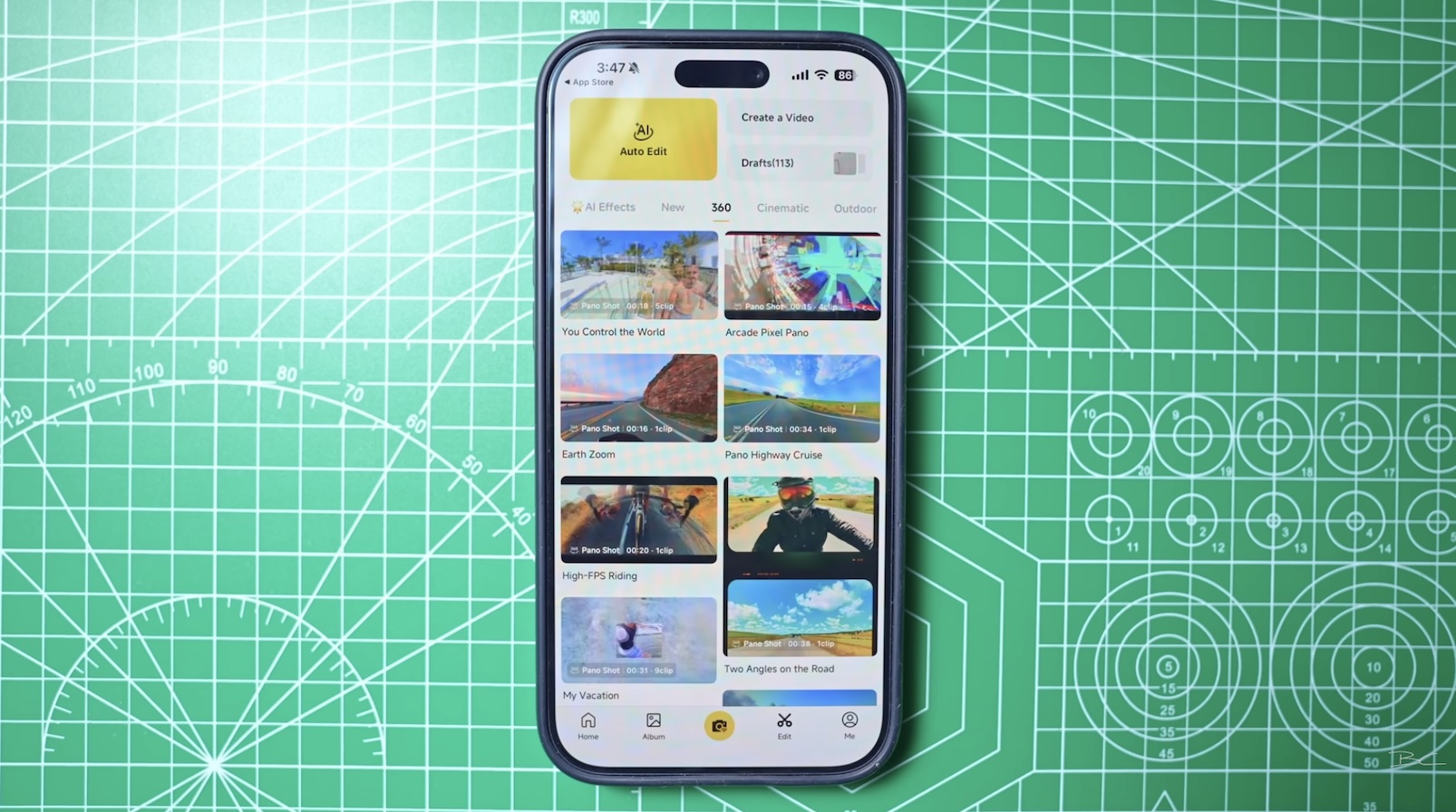
Some examples include:
- Zooms into your clip from a globe-style Earth view
- “Planet spinner” effects that rotate your footage like a miniature world
To use them, you simply tap “Use this theme”, select your clips, and let the AI do its thing. The results aren’t always perfect, but they’re great when you want something that looks polished without spending time manually editing.
They’re especially useful for travel content or quick social edits where you just want something that looks impressive fast.
Bonus: AI Effects Menu
There’s also an AI Effects section, which is where things get a bit more experimental. Some of these effects are genuinely impressive—especially the more stylised ones like matrix-style transformations or action-heavy overlays.
For example, I tested a snowboarding template using my own footage and the result was surprisingly good.
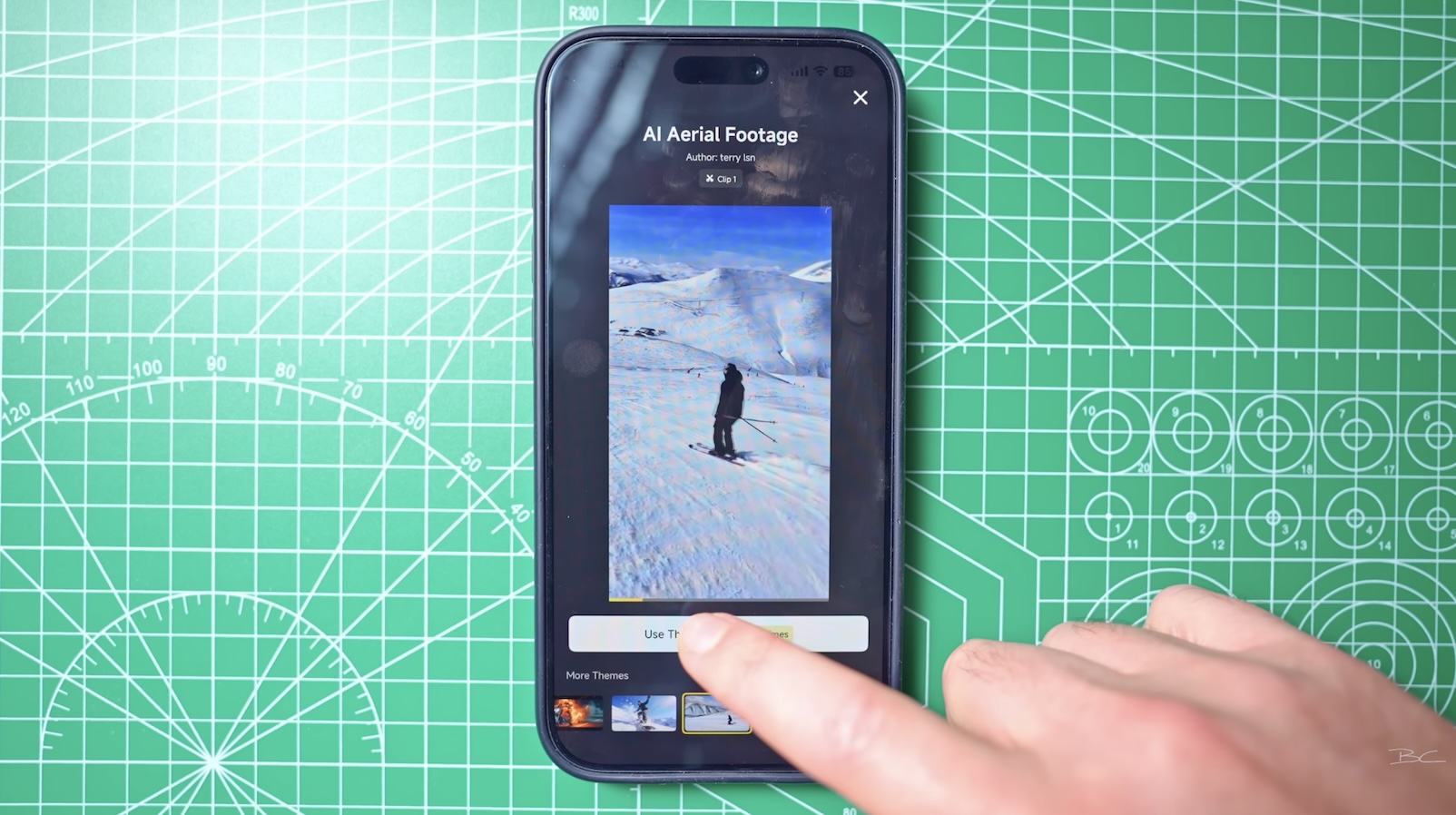
The process is simple:
- Choose an effect
- Tap “Use this theme”
- Select your clip
- Tap AI generate
Then wait about a minute for it to process.
The only downside is that generation is currently limited to just three total uses, which is quite restrictive. Hopefully this changes in the future, because when it works, it’s genuinely impressive.
Final Thoughts
These three updates might not look huge on paper, but they actually open up a lot more creative flexibility inside the Insta360 app—especially for anyone who edits directly on mobile.
The improved multiview feature makes storytelling more dynamic, the new transition curves fix one of the biggest frustrations in mobile editing, and the templates/AI tools give you quick ways to create high-impact edits without much effort.
If these updates have sparked some ideas, it’s worth experimenting with them next time you’re out shooting—you’ll probably find a few new ways to use your camera that you hadn’t considered before.
Blog Author